> ## Documentation Index
> Fetch the complete documentation index at: https://docs.frameup.app/llms.txt
> Use this file to discover all available pages before exploring further.
# Size Metafield
> Set artwork size without variants
## Introduction
If you offer different size options for each artwork product we recommend using size variants.
If you only offer one size for each product you may prefer to use a metafield to set the artwork size.
Follow the steps below to create the "artwork.size" metafield for your store and set it for a product.
### 1. Create the metafield definition
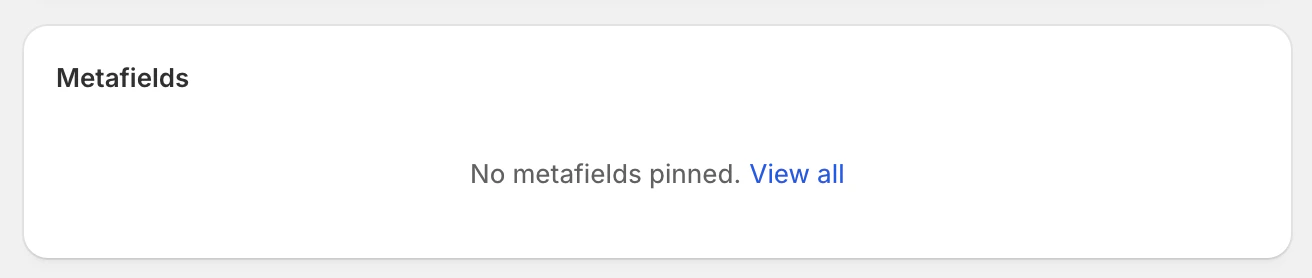
On a product page in the Shopify admin, scroll down to the "Metafields" section and click "View all".
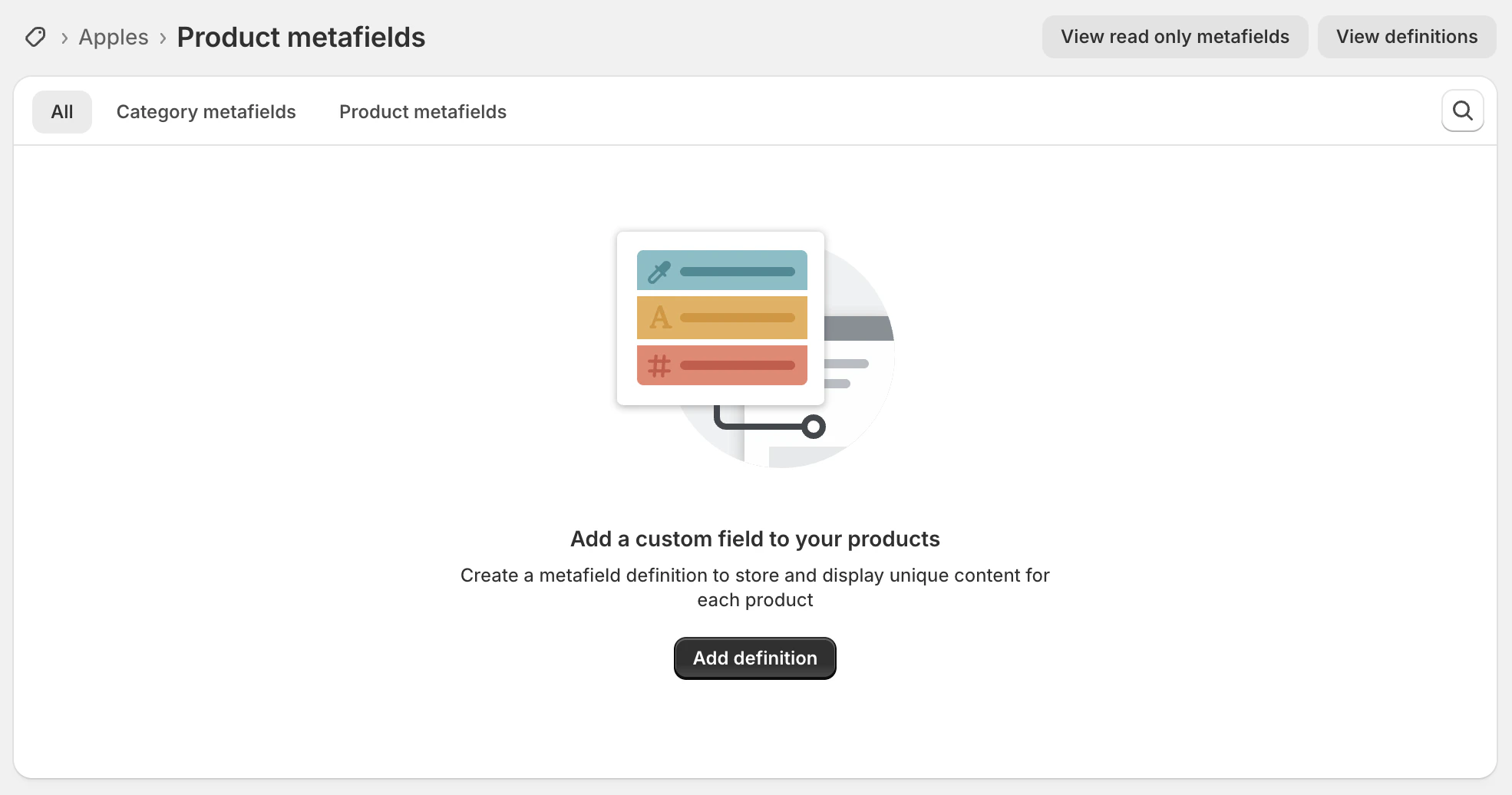
 You should now see the product metafields for your store. You may already have some. Click "Add definition":
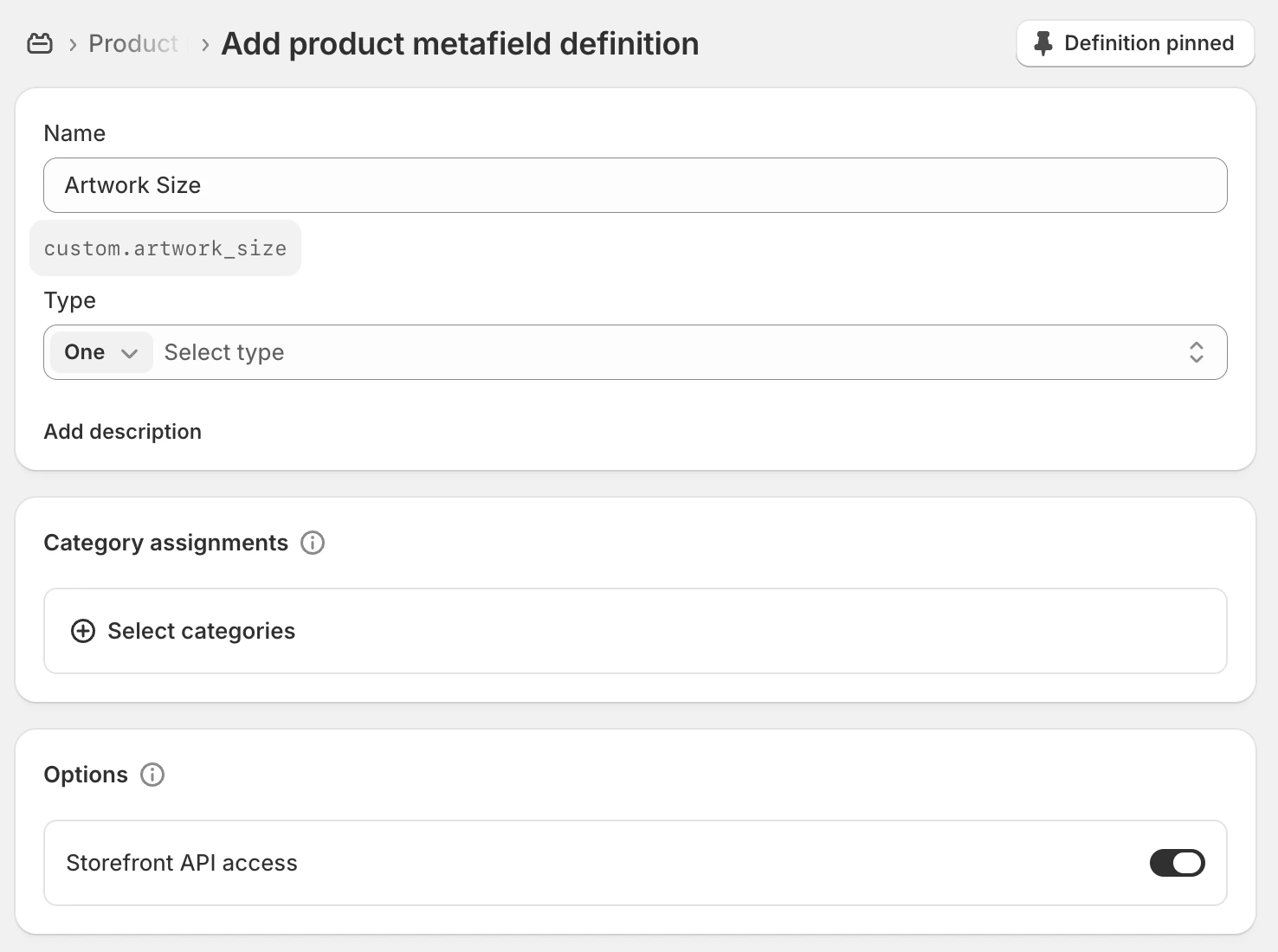
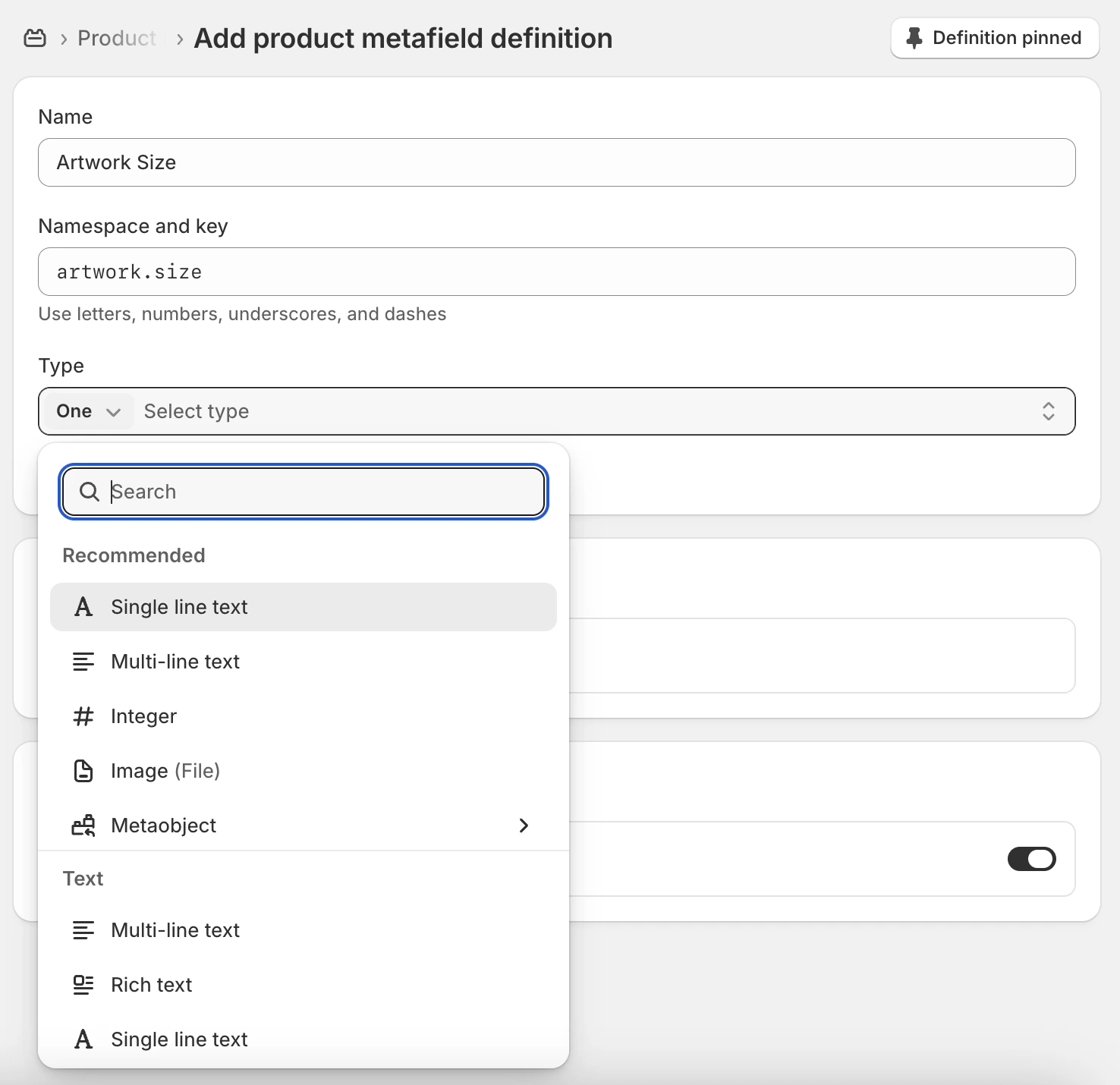
 You should see the "Add product metafield definition" screen. Type in the name of the metafield, e.g. "Artwork Size", then click where it says "custom.artwork\_size".
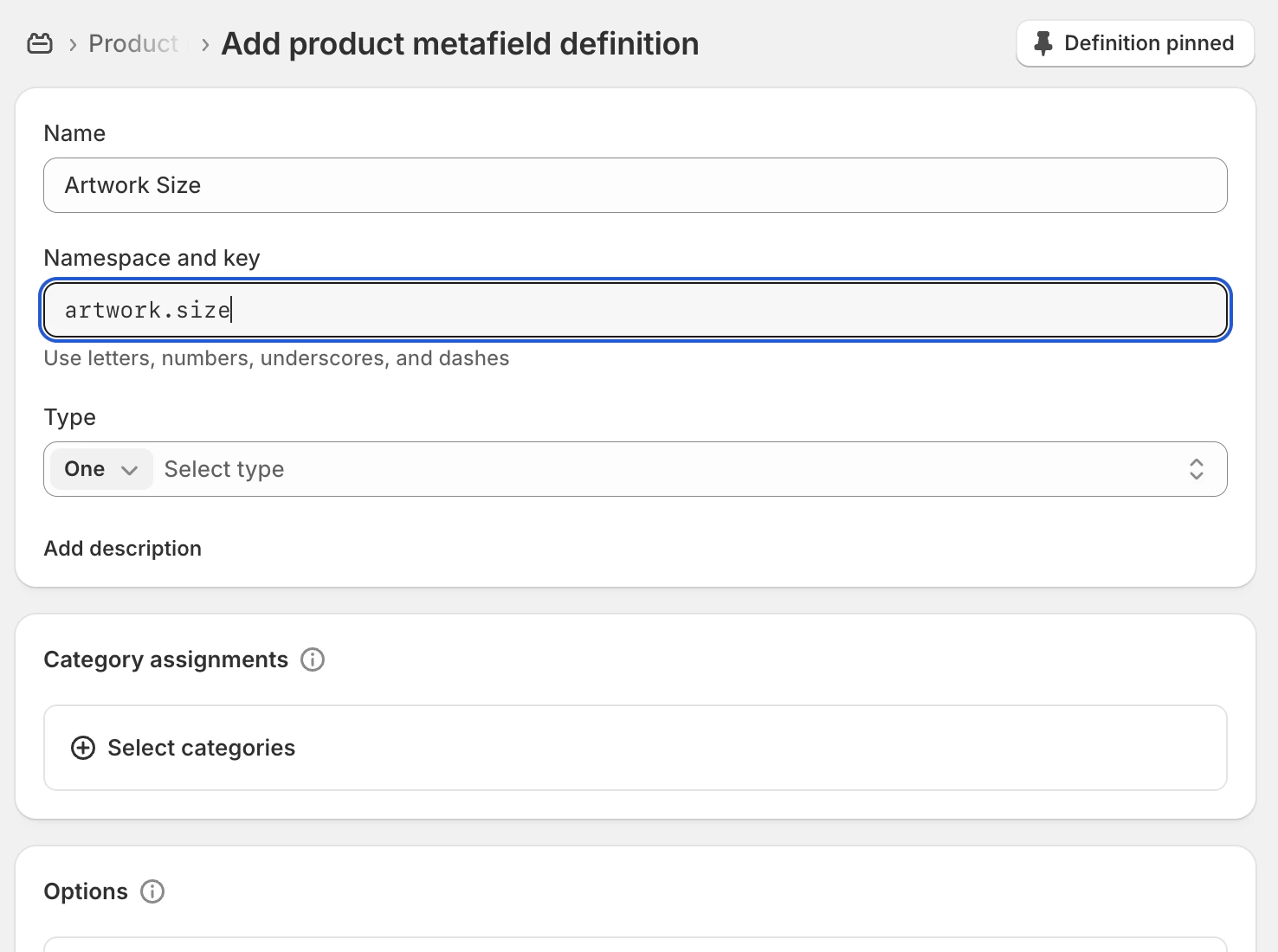
 Delete the "custom.artwork\_size" and type in "artwork.size". This must match exactly:
 Set the type to "Single line text":
 Now click "Save" at the top of the page to save this metafield definition.
### 2. Set artwork size for each product
Return to a product page in Shopify admin, scroll down to the Metafields section and you should be able to type in your artwork size like below:
Now click "Save" at the top of the page to save this metafield definition.
### 2. Set artwork size for each product
Return to a product page in Shopify admin, scroll down to the Metafields section and you should be able to type in your artwork size like below:
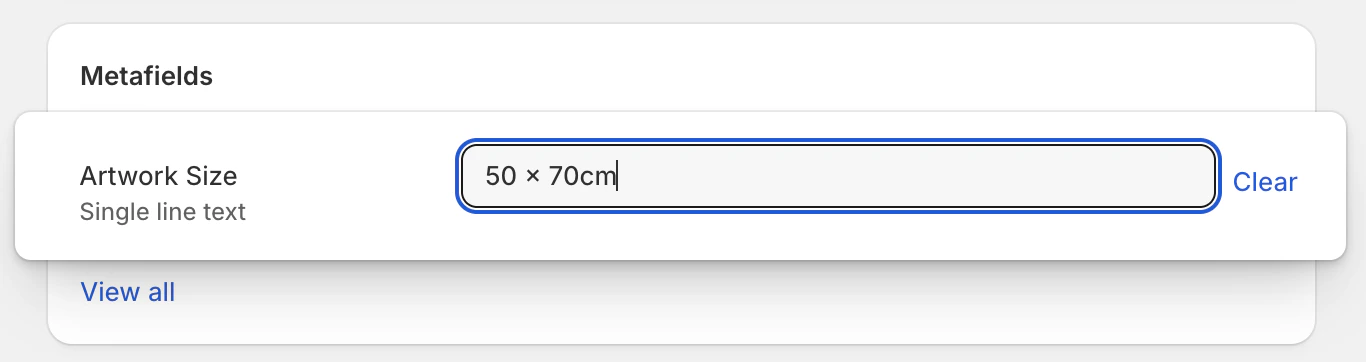 Click 'Save' and Frame Up will now automatically detect this as the artwork size.
Our support team is ready to help! Click here to e-mail us with any questions
you have about Frame Up.
Click 'Save' and Frame Up will now automatically detect this as the artwork size.
Our support team is ready to help! Click here to e-mail us with any questions
you have about Frame Up.