> ## Documentation Index
> Fetch the complete documentation index at: https://docs.frameup.app/llms.txt
> Use this file to discover all available pages before exploring further.
# Rooms
> Choose a room for 'View in a room' mode
## Choose a room
Click the thumbnail with the icon to open up the room selection panel.
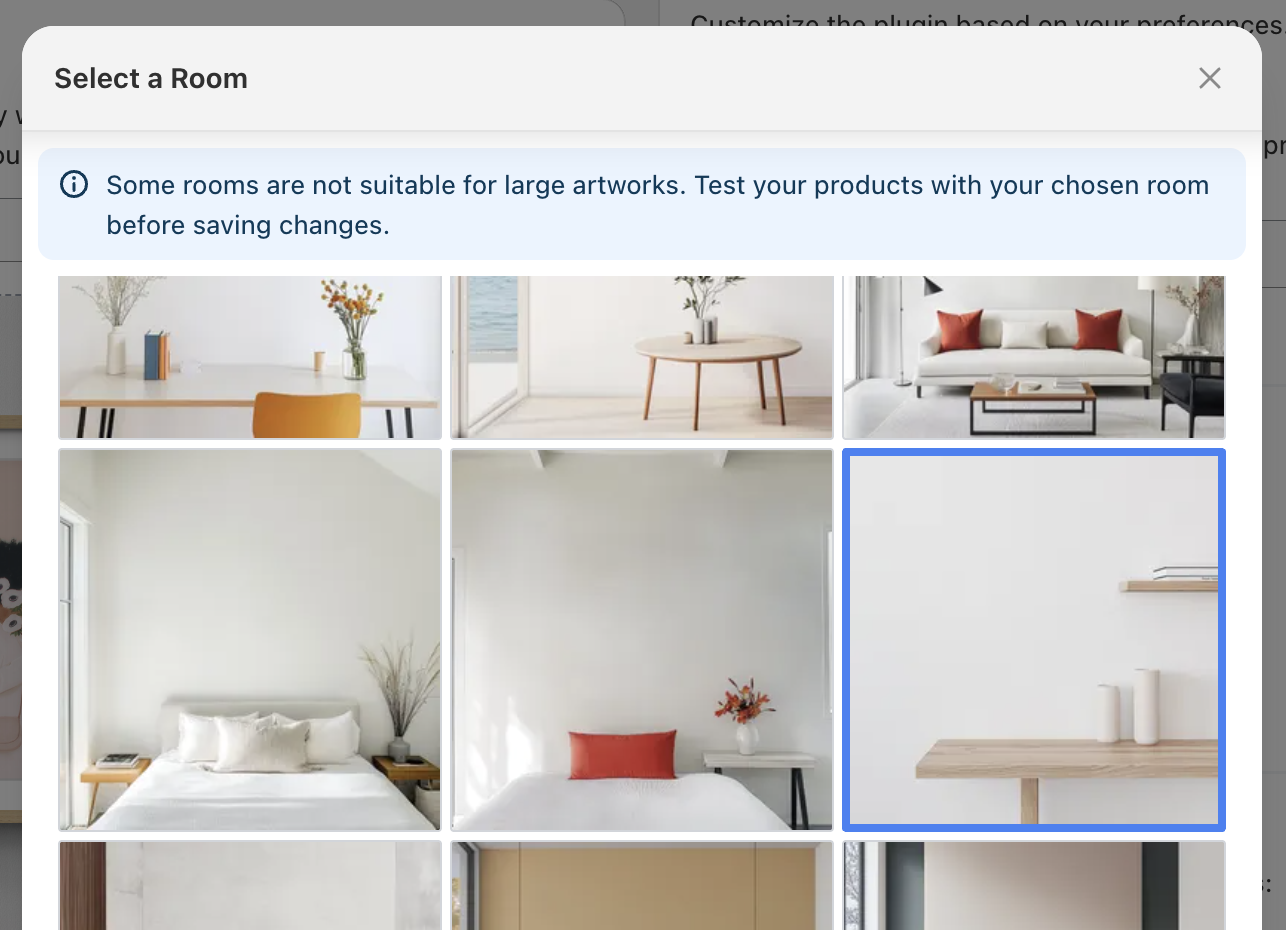
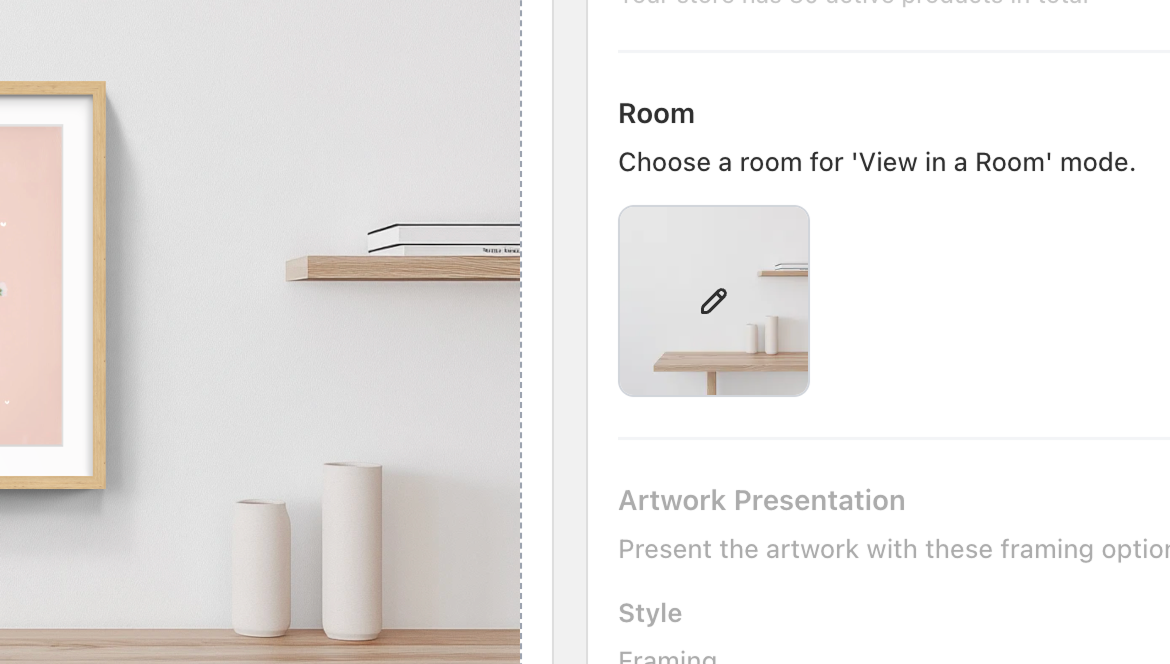 Here you can select from a range of rooms. If you're using different artwork sizes (see size variants) we recommended checking each size to make sure it fits in the room.
More room options are available on the Advanced and Plus tiers with custom
rooms possible with the Plus tier
Here you can select from a range of rooms. If you're using different artwork sizes (see size variants) we recommended checking each size to make sure it fits in the room.
More room options are available on the Advanced and Plus tiers with custom
rooms possible with the Plus tier
 ## Next step
Next we'll look at how to customise the framing of your artworks.
Teach Frame Up how to interpret your size and framing variants
## Next step
Next we'll look at how to customise the framing of your artworks.
Teach Frame Up how to interpret your size and framing variants