> ## Documentation Index
> Fetch the complete documentation index at: https://docs.frameup.app/llms.txt
> Use this file to discover all available pages before exploring further.
# Variants
## Introduction
Wall art is often sold with different framing and size options. On Shopify these are usually offered as product variants. Frame Up can understand these variants and show customers a matching artwork preview.
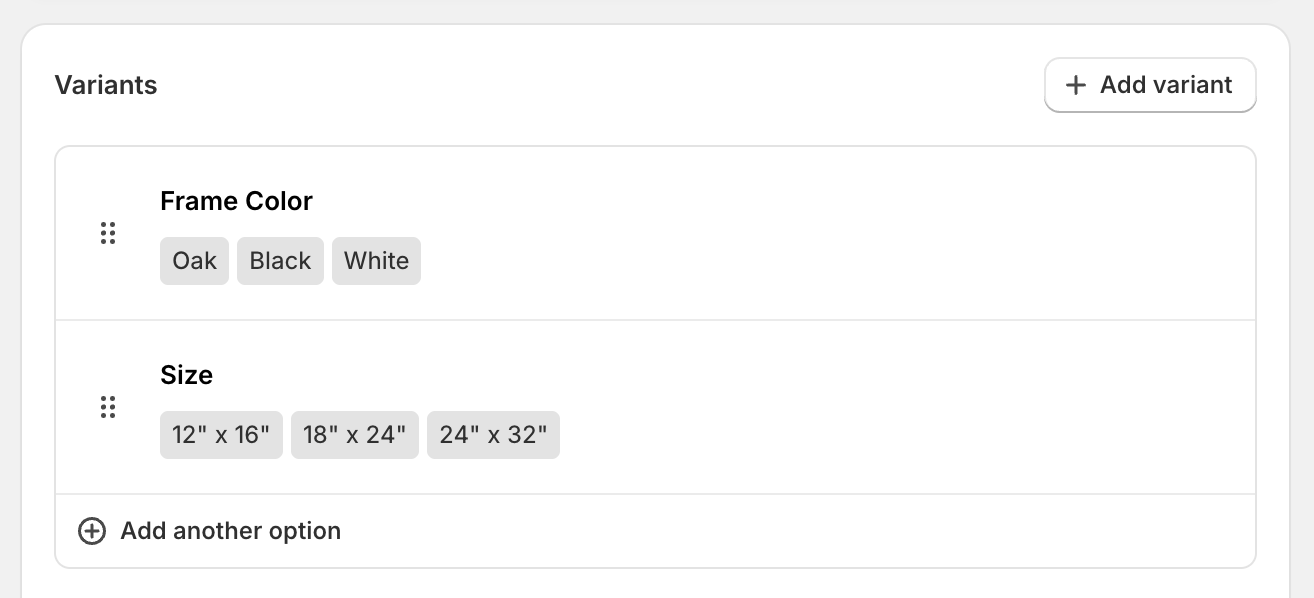 Your products should already have variants before continuing
## Variant rules
There are many different ways to configure your variants so we need to teach Frame Up how to understand them - we do this using Variant Rules.
Search for a product in the preview section. Choose a product that has variants.
Below the preview area you'll see all the product's variants listed:
Your products should already have variants before continuing
## Variant rules
There are many different ways to configure your variants so we need to teach Frame Up how to understand them - we do this using Variant Rules.
Search for a product in the preview section. Choose a product that has variants.
Below the preview area you'll see all the product's variants listed:
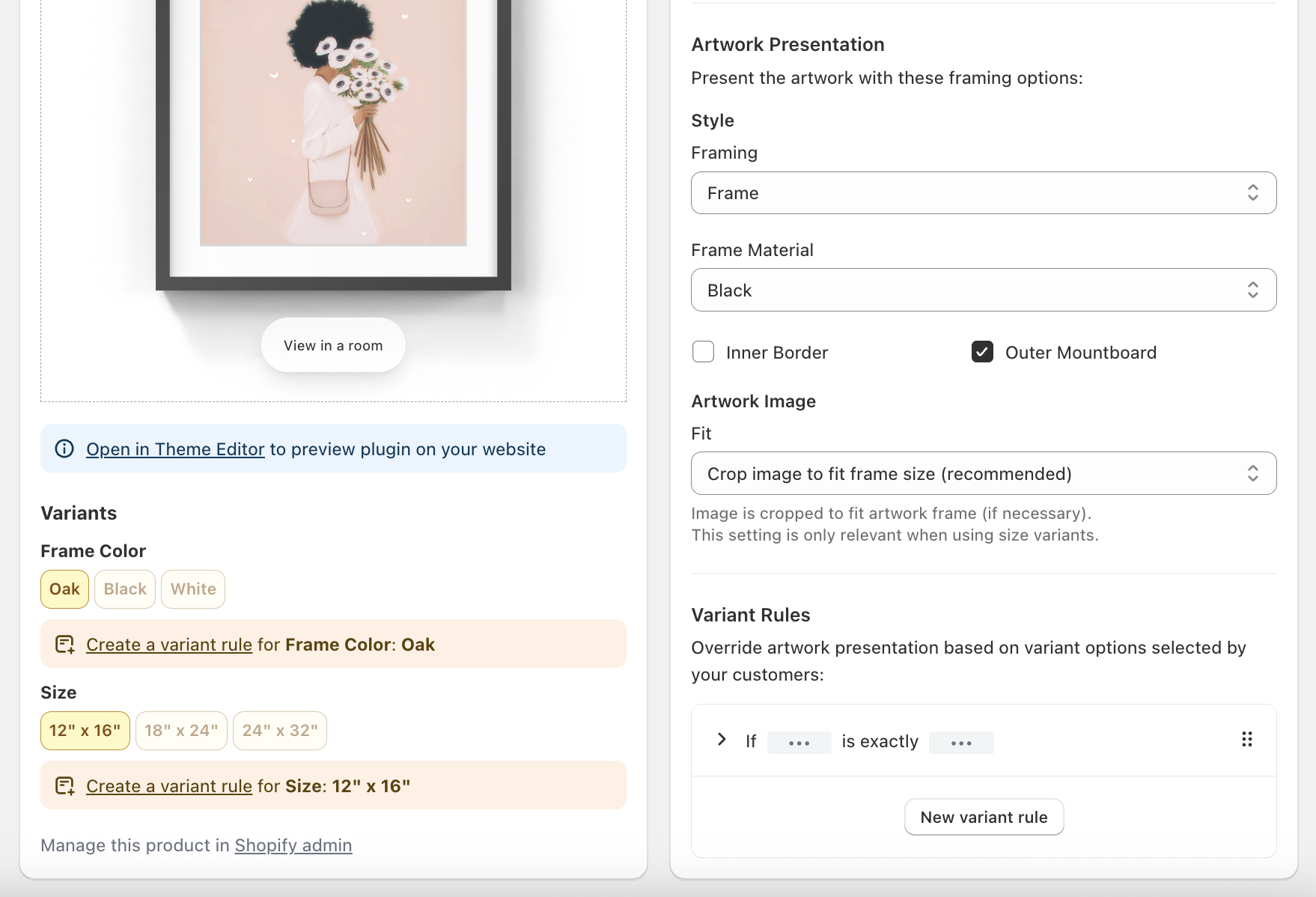 If a variant option is yellow that means no matching rule has been found.
Notice how the artwork frame is black. This is because in the Artwork
Presentation section the frame material is set to black.
### Automatically create a style rule
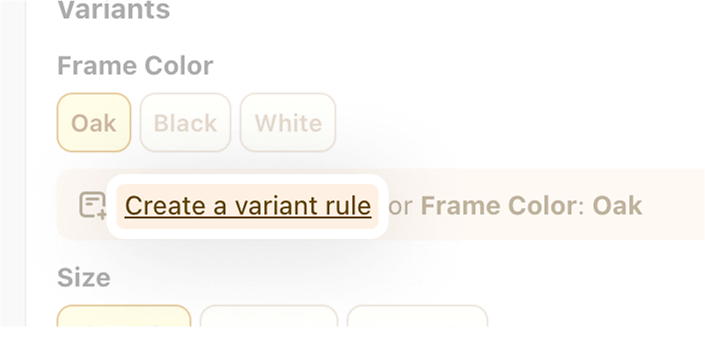
Let's set up a variant rule for the "Oak" option. To do this click "Create a variant rule".
This automatically creates a rule for us that we can see on the right side of the page.
If a variant option is yellow that means no matching rule has been found.
Notice how the artwork frame is black. This is because in the Artwork
Presentation section the frame material is set to black.
### Automatically create a style rule
Let's set up a variant rule for the "Oak" option. To do this click "Create a variant rule".
This automatically creates a rule for us that we can see on the right side of the page.
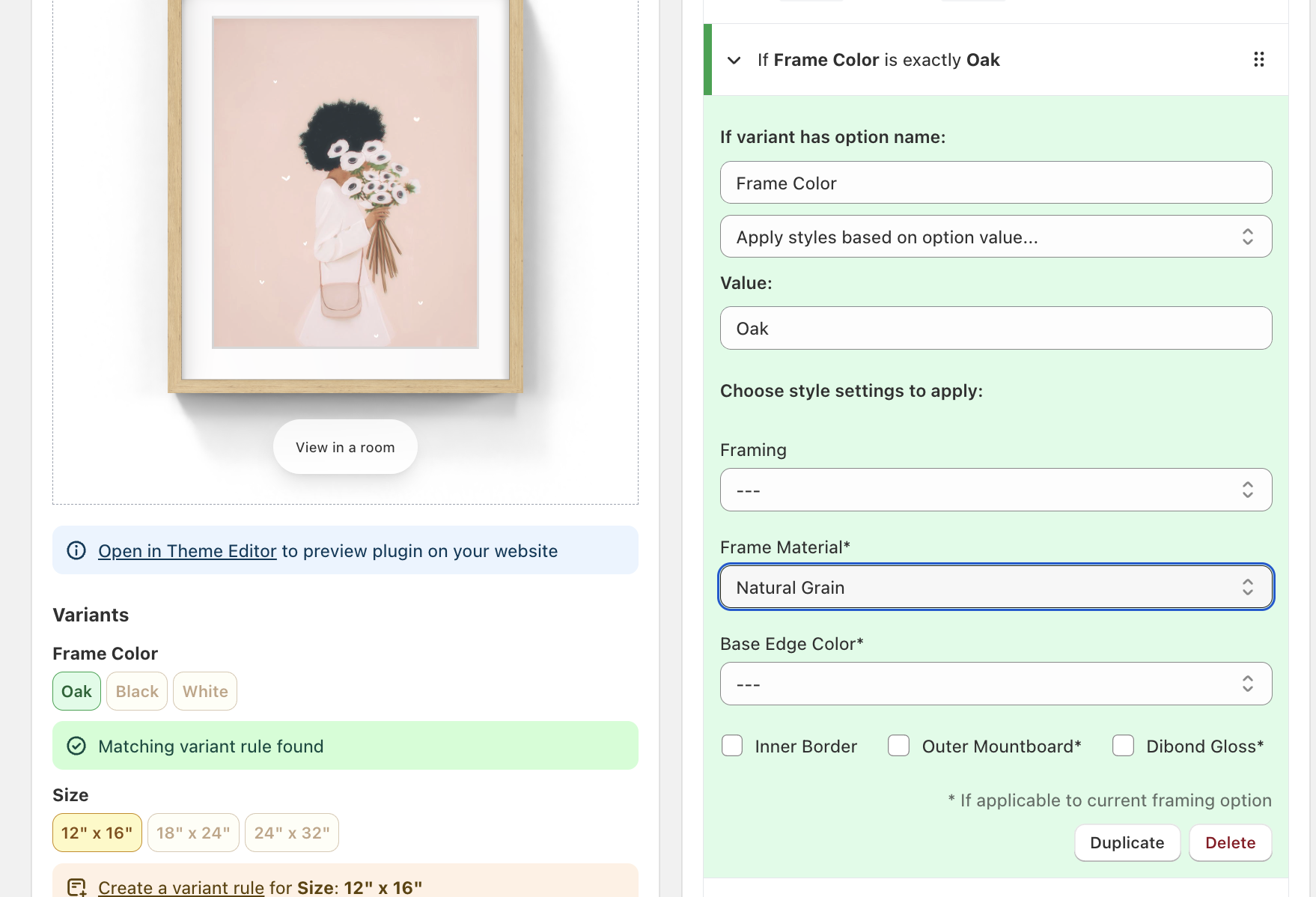
 The 'Oak' variant option is now green. On the right side of the page we can now select the appropriate style settings. In our case we want to set 'Frame Material' to 'Natural Grain' because it most closely matches the look of the frames we sell.
 This process can then be repeated for your other style variants.
### Automatically create a size rule
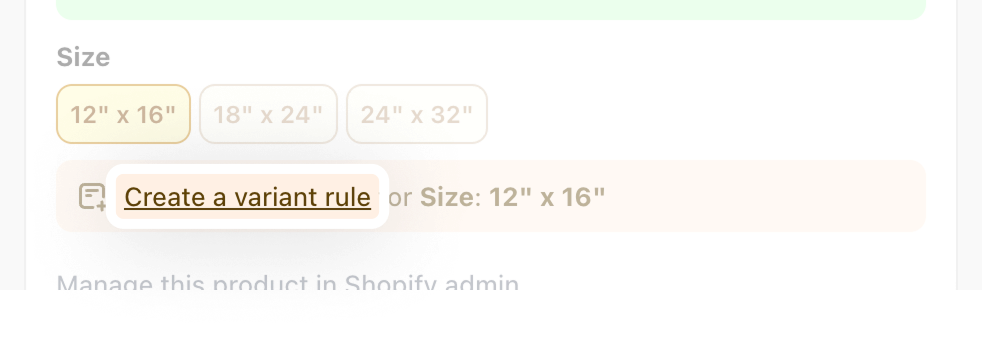
Frame Up can automatically detect variants if they look like sizes, for example *12" x 16"*. To do this click “Create a variant rule”.
This process can then be repeated for your other style variants.
### Automatically create a size rule
Frame Up can automatically detect variants if they look like sizes, for example *12" x 16"*. To do this click “Create a variant rule”.
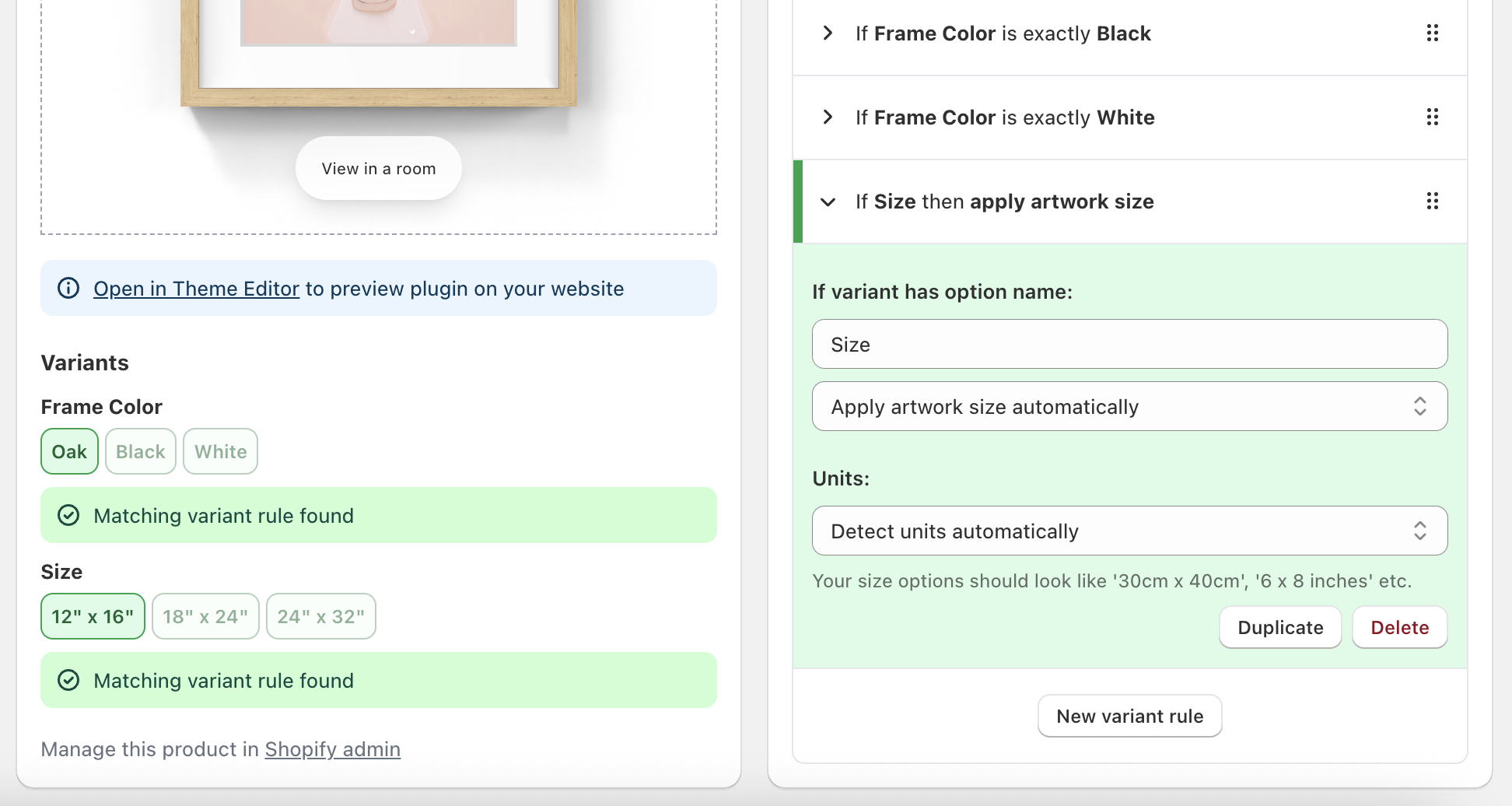
 This creates a single rule that detects all your size options.
 ### Creating rules manually
You can also create rules manually using the 'New variant rule' button at the bottom of the variant rules section. We recommend using the automated system above as it guarantees the rule will match the variant.
Our support team is ready to help! Click here to e-mail us with any questions
you have about Frame Up.
### Creating rules manually
You can also create rules manually using the 'New variant rule' button at the bottom of the variant rules section. We recommend using the automated system above as it guarantees the rule will match the variant.
Our support team is ready to help! Click here to e-mail us with any questions
you have about Frame Up.