> ## Documentation Index
> Fetch the complete documentation index at: https://docs.frameup.app/llms.txt
> Use this file to discover all available pages before exploring further.
# Quickstart
> Get Frame Up running on your website in under 5 minutes
## Install Frame Up
Click the link below to open the Shopify App Store, then click the "Install" button.
}
href="/components/columns"
>
This link will take you to Frame Up's page on the Shopify App Store
## Start free trial
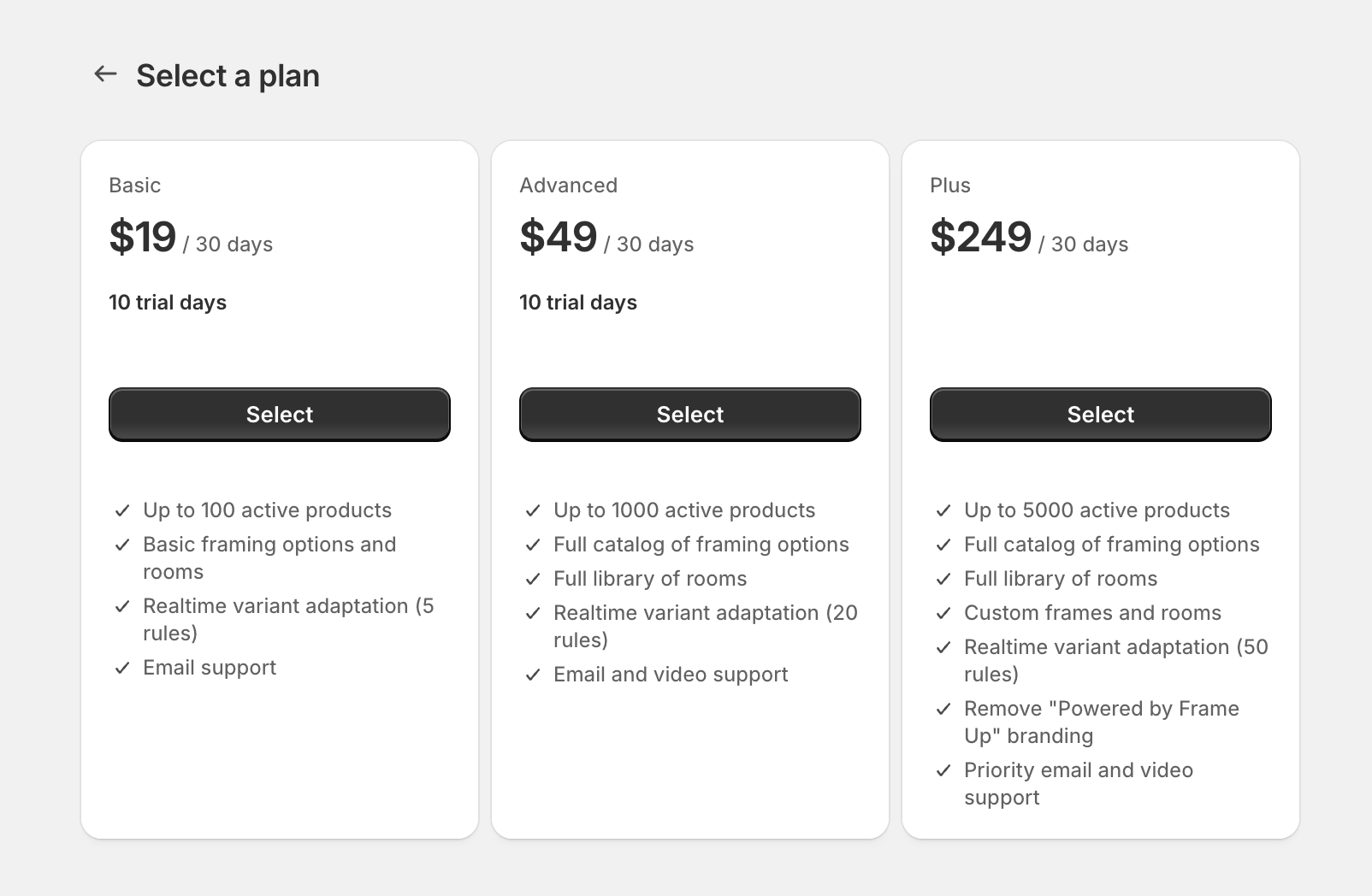
Choose either a Basic or Advanced plan to start a free 10-day trial of Frame Up.
 ## Onboarding
### Preview in the app
Before adding the plugin to your website let's preview the plugin with one of your products in the app.
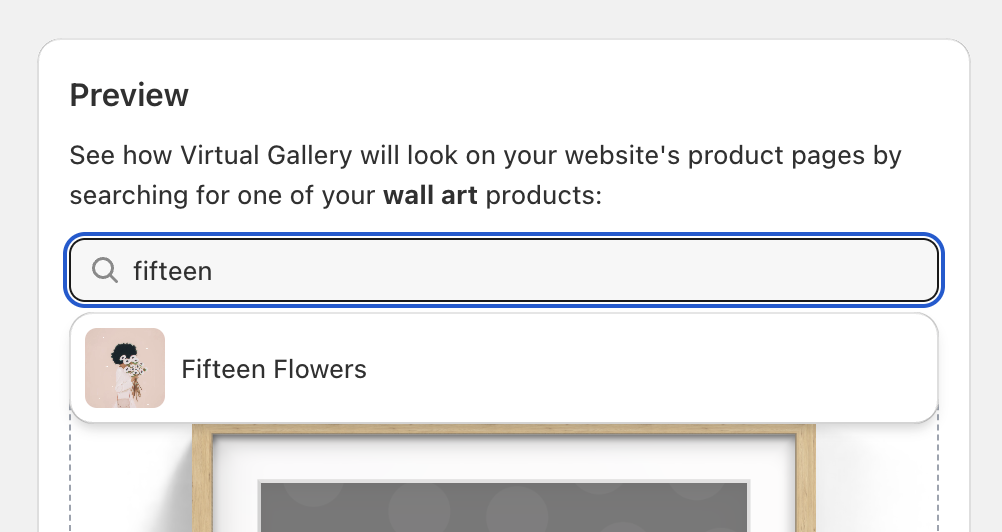
On the left side of the app you'll find the "Preview" section. Use the search box to find and select one of your wall art products.
Your store should have at least one wall art product and its first image
should be just the artwork with no frame or other background
## Onboarding
### Preview in the app
Before adding the plugin to your website let's preview the plugin with one of your products in the app.
On the left side of the app you'll find the "Preview" section. Use the search box to find and select one of your wall art products.
Your store should have at least one wall art product and its first image
should be just the artwork with no frame or other background
 Below the search box you'll see a preview of how the plugin would appear on a website.
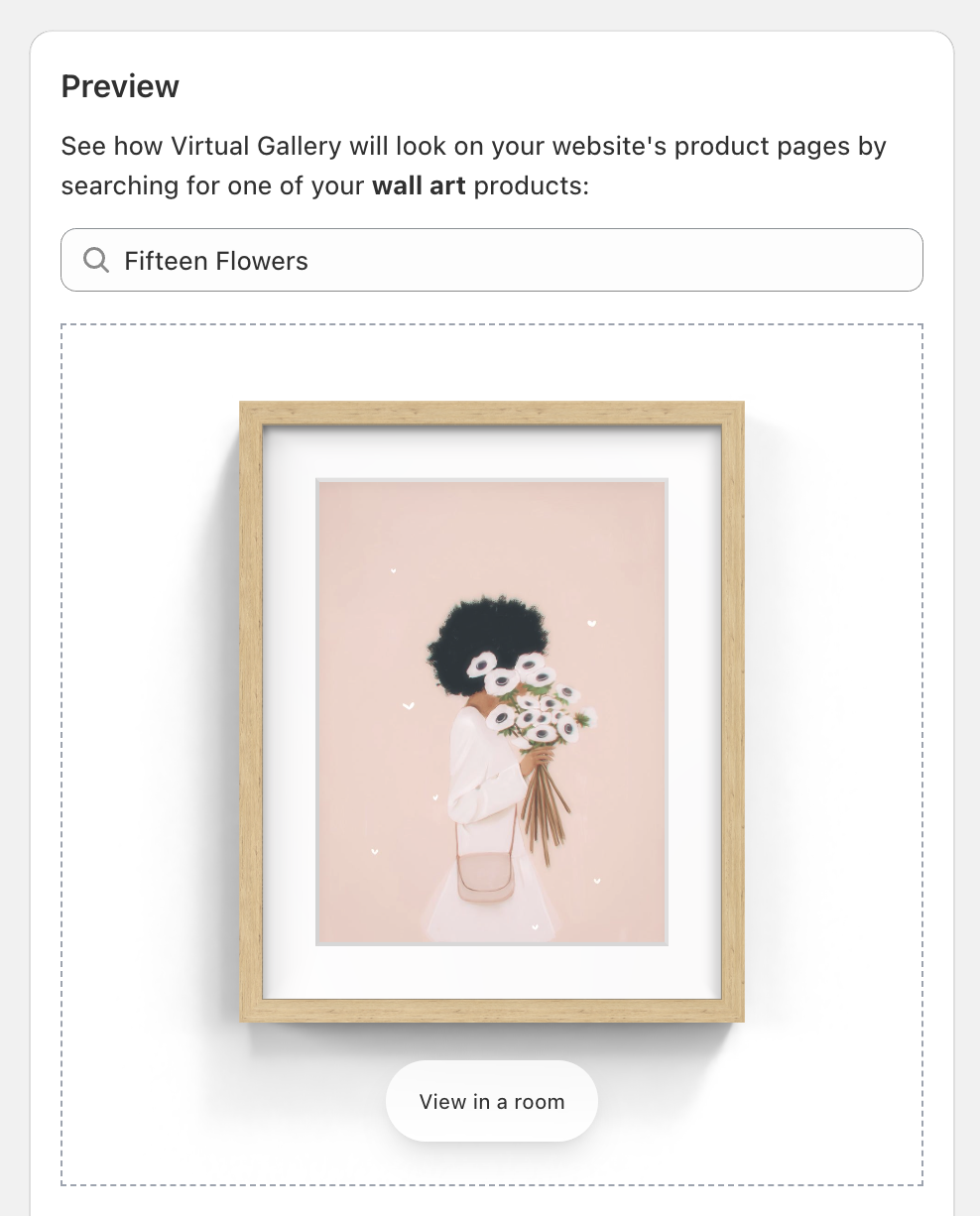 The plugin replaces your existing image gallery on your wall art product pages
Try hovering the mouse (on desktop) or touching (on mobile) over the artwork
to view it from different angles. Also try clicking the "View in a room" button.
### Preview in the theme editor
To see how the plugin looks when integrated into your theme click "Open in Theme Editor". This opens the Shopify theme editor with the Frame Up plugin enabled.
The plugin replaces your existing image gallery on your wall art product pages
Try hovering the mouse (on desktop) or touching (on mobile) over the artwork
to view it from different angles. Also try clicking the "View in a room" button.
### Preview in the theme editor
To see how the plugin looks when integrated into your theme click "Open in Theme Editor". This opens the Shopify theme editor with the Frame Up plugin enabled.
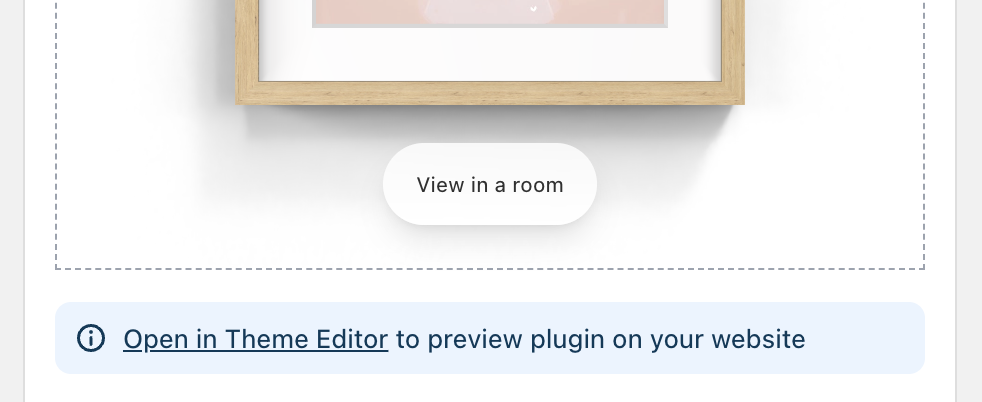 You should see that the plugin has replaced the standard image gallery. Sometimes third party themes have compatibility issues with Frame Up - if you don't see the plugin please contact us and we'll find a solution for you.
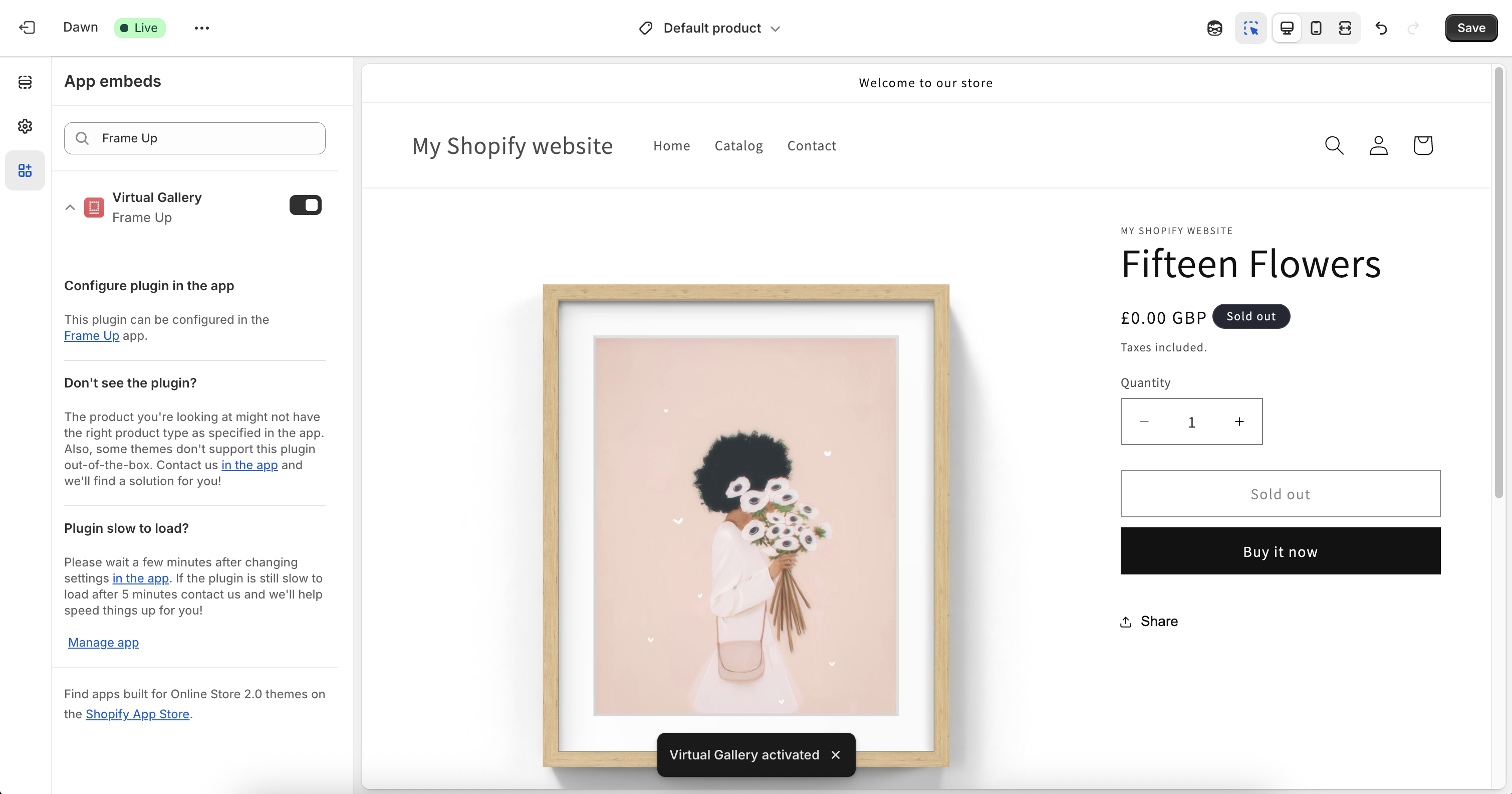 Clicking "Save" in the theme editor enables the plugin on your live website.
You probably don't want to do this yet!
The plugin may take a couple of seconds to appear in the theme editor but
should appear instantly on your live website
## Next step
You should now have an idea of how Frame Up works. Next we'll look at how to customise the plugin for your store.
Learn how to enable Frame Up only for some of your products
Clicking "Save" in the theme editor enables the plugin on your live website.
You probably don't want to do this yet!
The plugin may take a couple of seconds to appear in the theme editor but
should appear instantly on your live website
## Next step
You should now have an idea of how Frame Up works. Next we'll look at how to customise the plugin for your store.
Learn how to enable Frame Up only for some of your products