Artwork image metafield
Introduction
By default, Frame Up uses one of your product images as the artwork (the 1st, 2nd or 3rd, chosen under “Image Source” in the app). The first product image is also the one Shopify shows in search results, Google Shopping, social share previews and the cart.
If you want a product photo first in your media but a different image in the frame, set an “Artwork image” metafield on the product. When it’s set, Frame Up uses that image and ignores the order of your media. Products without it keep using the image chosen under “Image Source”.
The image should be the artwork only, with no frame or background.
Create the metafield definition
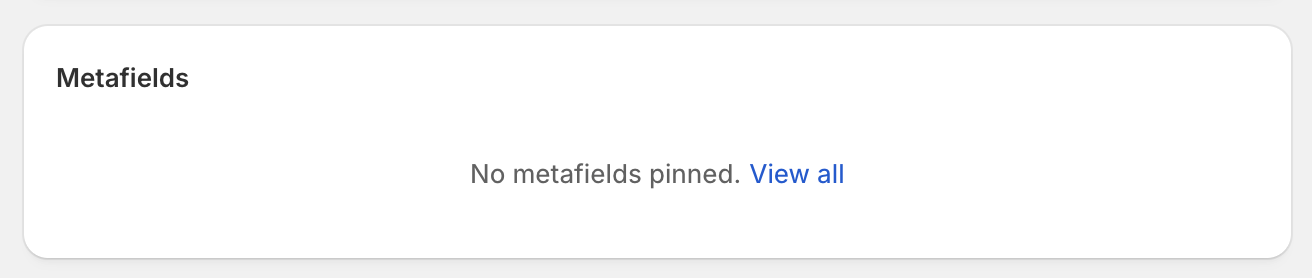
On a product page in the Shopify admin, scroll down to the “Metafields” section and click “View all”.
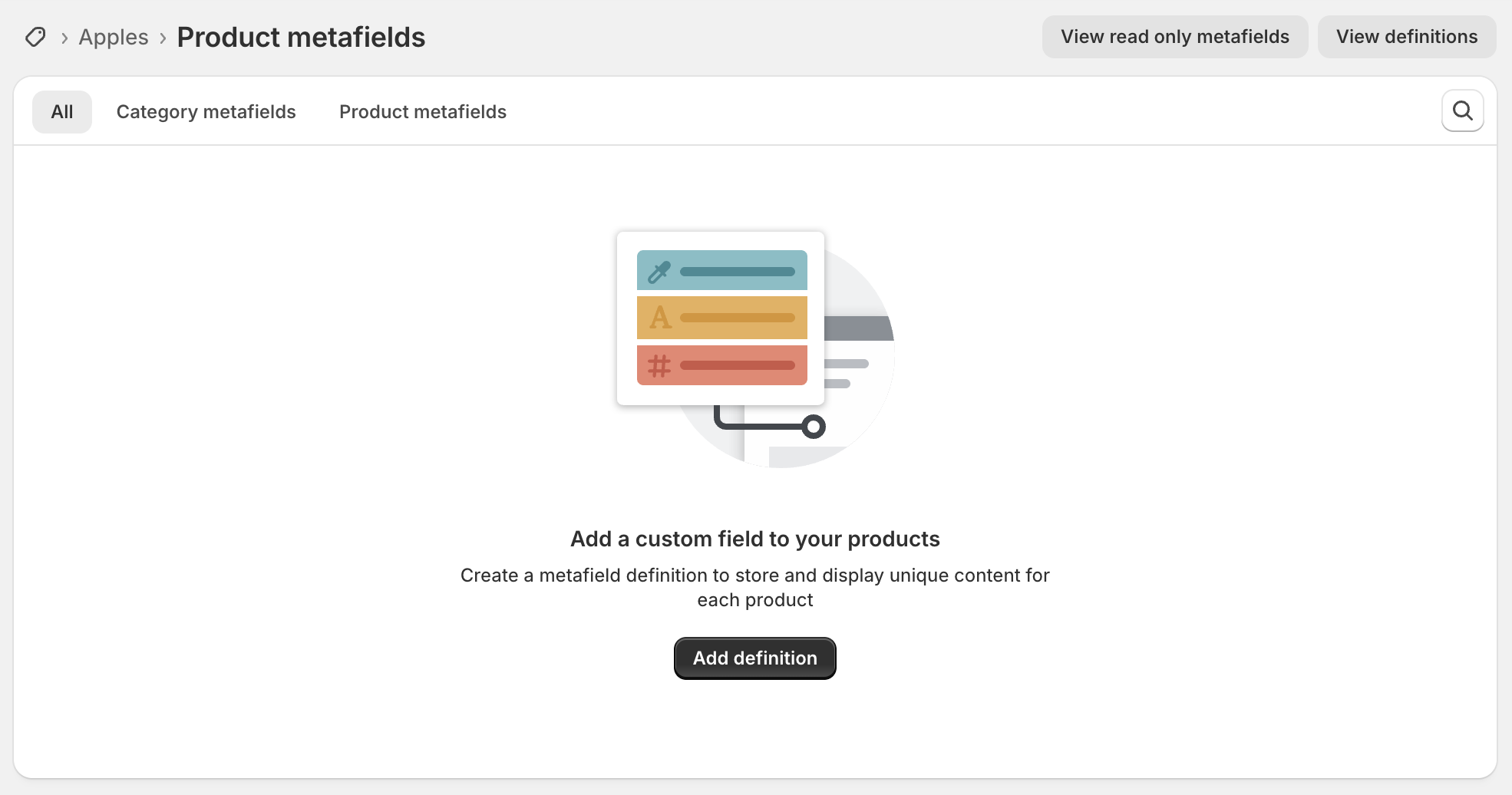
You should now see the product metafields for your store. Click “Add definition”:
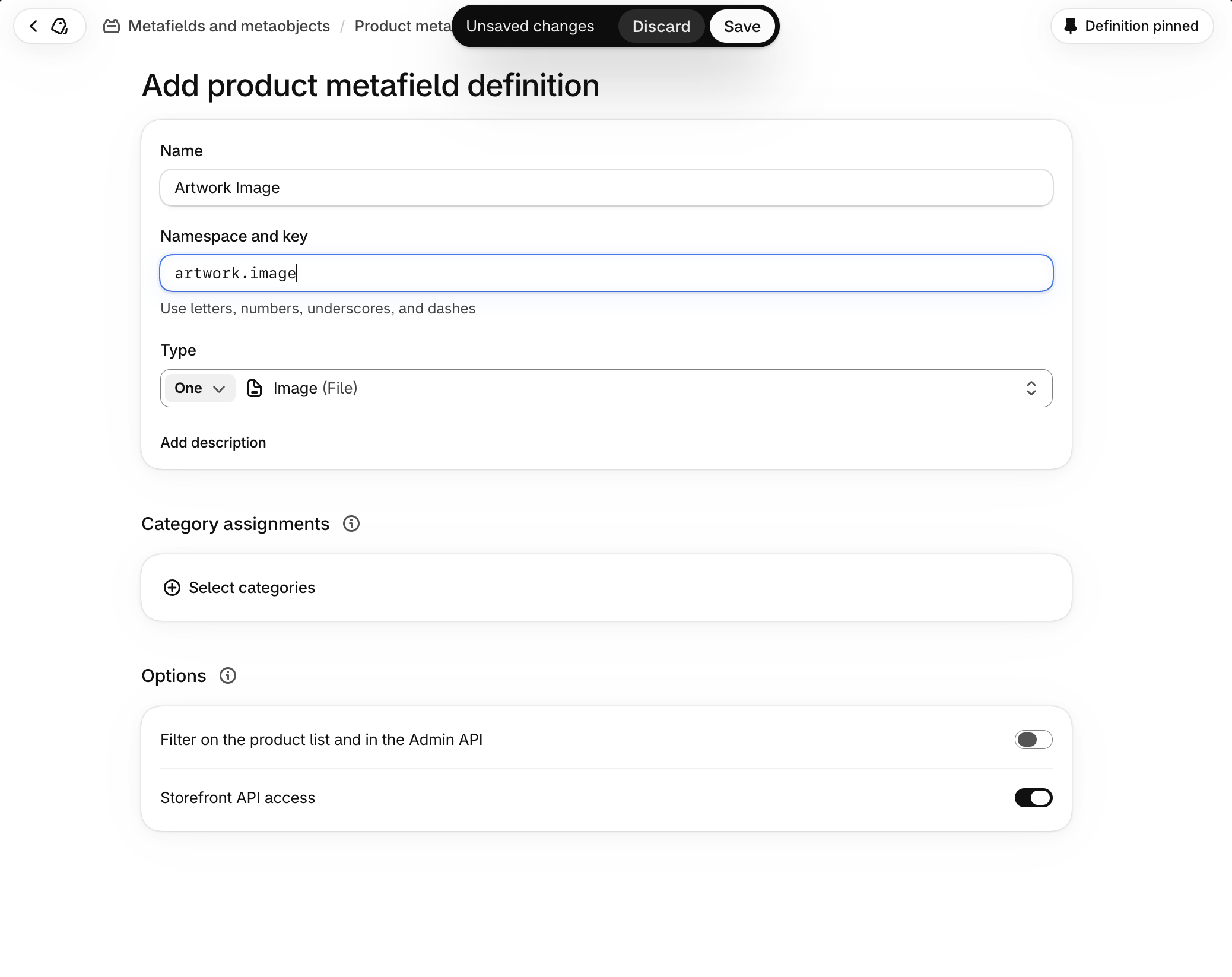
For the name, type “Artwork Image”. Check that the namespace and key underneath read “artwork.image”. This must match exactly. If it shows “custom.artwork_image”, click the namespace and key and change it to “artwork.image”.
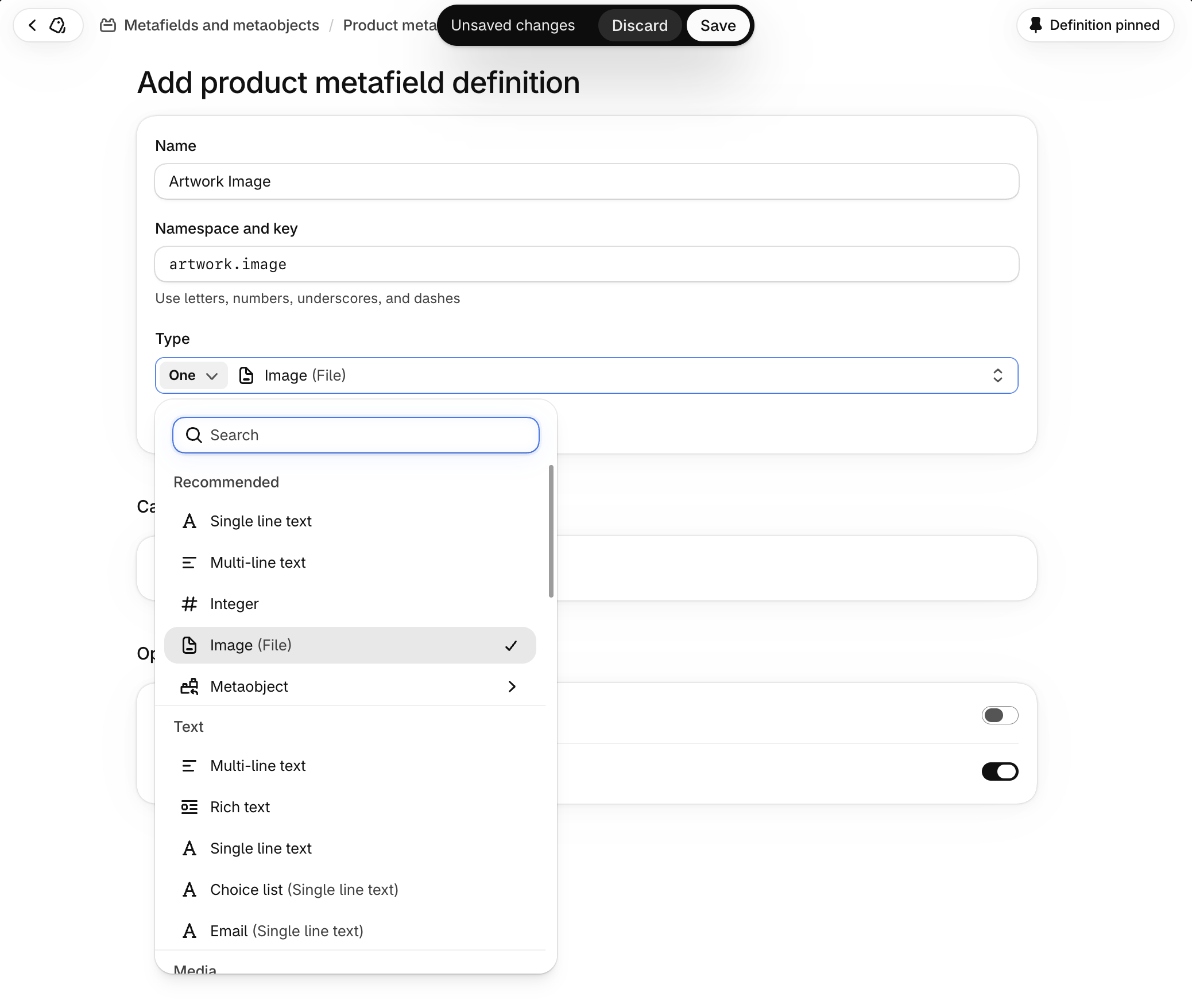
Set the type to “Image (File)”, which you’ll find under “Recommended”, then click “Save” at the top of the page.
Set the image for a product
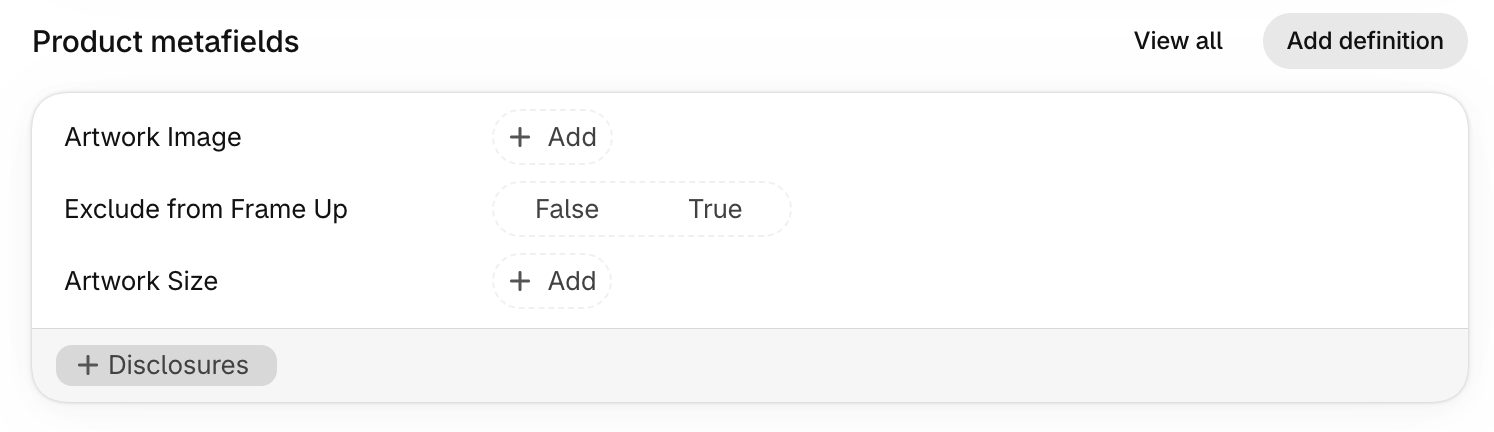
Return to the product page in the Shopify admin and scroll down to the Metafields section. Click “Add” next to “Artwork Image” and select or upload your artwork image. Click “Save”.
The live preview uses the new image straight away. It may take a few minutes for the fast-loading preview image to update.
To go back to using the product’s media, remove the image from the metafield.
Need help?
Our support team is ready to help. Email us with any questions you have about Frame Up.