Framing
Artwork presentation
In this section you can choose from a range of frame styles and control how artwork images are rendered.
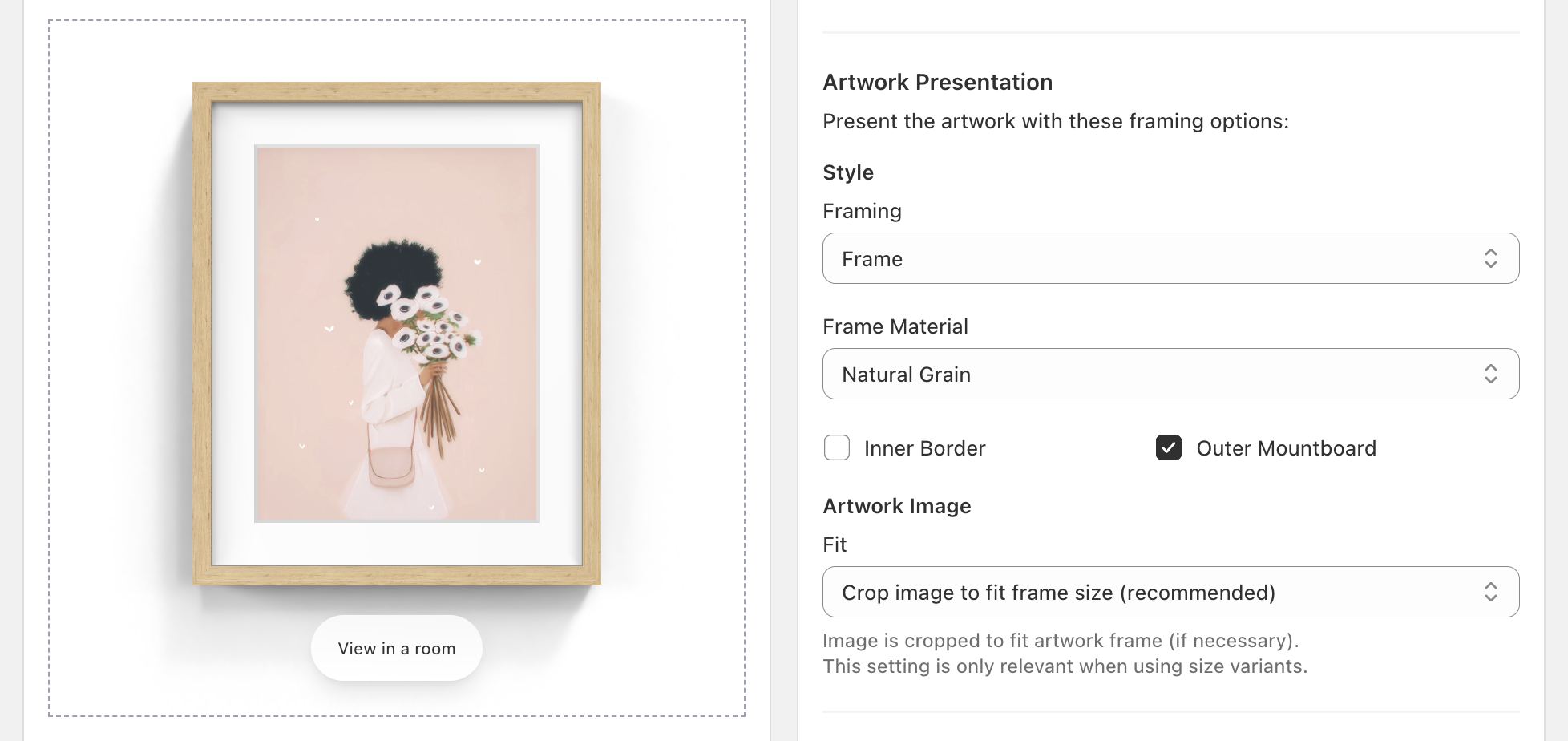
Style
You can choose from a range of framing options. The preview on the left side of the page updates in realtime as you select different options. Different framing options have different secondary options; for example, when “Frame” is selected you’ll see a “Frame Material” option below.
It’s also possible to add a border and, for the Frame and Print types, a mountboard. On a print the mountboard shows as an unframed mat with a bevelled window.
If you offer more than one framing style, you can also apply styles based on your variants. We’ll cover this in a later section.
More framing options are available on the Advanced and Plus plans, with custom frame moldings and materials possible on the Plus plan.
Artwork image
If you offer different artwork sizes (see size variants), Frame Up gives you options for how to render the artwork image within the frame.
Review the fit modes below to find the right fit for your store:
| Fit mode | Description |
|---|---|
| Crop image to fit frame size | The top and bottom or left and right sides of the artwork image are cropped so the artwork fits inside the frame. We recommend this for most stores. |
| Stretch image to fit frame size | The artwork image is stretched to fill the frame. This may distort the image. |
| Adjust frame size to fit image | The artwork image is not cropped or distorted. Instead the frame size is adjusted to match the aspect ratio of the artwork image. |
Image source
Frame Up uses one of your product images as the artwork: the 1st, 2nd or 3rd, chosen under “Image Source”. To pick the image for a product regardless of the order of its media, use the image metafield.
Size metafield
For artworks that are only sold at one size, you can also set the artwork size with a metafield instead of variants.
Next step
Next we’ll look at how to choose the room displayed in “View in a room” mode.
Rooms: learn how to customize “View in a room” mode.